Supporting Inline Images in Emails
August 2, 2024
By John Yenter-Briars

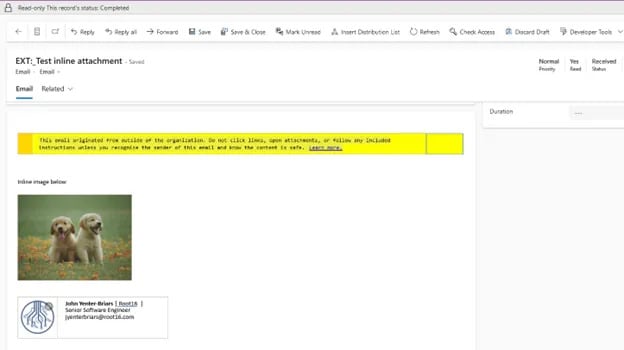
When integrating external email systems into the Power Platform via a custom solution, ensuring in‑line images render properly in the UI is key for users.
Integrating external email systems is a common requirement to support sales, marketing, and IT efforts.
We recently had a client in the professional services industry who was bringing emails from an external 3rd party application and moving them into, and then back out of, the Power Platform.
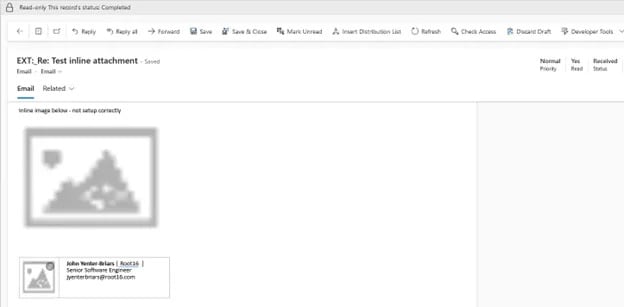
By default, inbound emails are sent, ingested and displayed as raw HTML. This creates an issue when the email is displayed in the app, as the UI can’t render the image.
Example:
Why Does This Happen?
In your email client, your emails don’t contain inline images within them directly. Instead, they have a link to the image which is stored beside your email. When the email is brought into the Power Platform, that link is broken and no image is displayed.
Simple Solution
Embed the image as a base64 string. This involves converting the bytes of the image to a base64 string and then assigning the value to the src attributes on the img tag.
In this solution, the email description column will look like:
<html>
    ...
    <img decoding="async" src="data:image/png;base64,<base_64_encoded_string_here>">
</html>
There is a fundamental problem with this approach.
- When a user replies to an email, and a sender replies to the reply, the images will keep getting copied in perpetuity.
- As replies continue, more and more base64 strings are encoded.
- The maximum character count of the description field on the email table is not infinite.
- After many replies, with multiple screenshots in each, the column will quickly fill out.
- This is an issue because it takes up space in Dataverse and creates storage issues.
A Smarter Way
A better way to solve this issue is to create an activitymimeattachment record for each attachment that links to the email record. Do this by completing the following steps programmatically:
- Create a new activitymimeattachment.
- Populate the column attachmentcontentid with the content ID of the attachment from the 3rd party email system.
- This can be whatever you want, but it seems that Microsoft Outlook’s email servers populate this as a GUID.
- Populate the column body with the content of the image encoded as a base64 string.
- Create the activitymimeattachment.
var linkedAttachment = new Entity("activitymimeattachment");
linkedAttachment["objectid"] = new EntityReference("email", newEmailId);
linkedAttachment["objecttypecode"] = "email";
linkedAttachment["filename"] = attachment.Name;
linkedAttachment["mimetype"] = attachment.ContentType;
linkedAttachment["body"] = attachment.Base64StringContent;
linkedAttachment["attachmentcontentid"] = attachment.ContentId;- After the activitymimeattachment is created, for each attachment you created inject the GUID of the attachment record into the email.
- Do this by appending an attribute called data-attachment-id to each img tag and set its value to be the GUID of the activitymimeattachment id.
<html>
    ...
    <img decoding="async" class="lazyload"
        data-attachment-id="0e563486-141a-ef11-9f89-000d3a9ad7fc"
        src="cid:4c1795eb-952b-40ae-b1c4-d49e6d772eaf"
        style="width:264px; height:199px"  />
</html>
Here is some sample code for how you can dynamically inject the data-attachment-id. This code can run in either a Power Platform Plugin or an Azure Function.
static string InjectDataAttachmentIdToImage(string html, Guid attachmentId, string contentId)
{
	var doc = new HtmlDocument();
	doc.LoadHtml(html);
	var imgNodes = doc.DocumentNode.SelectNodes($"//img[@src='cid:{contentId}']");
	if (imgNodes != null)
	{
		foreach (var imgNode in imgNodes)
		{
			imgNode.Attributes.Add("data-attachment-id", attachmentId.ToString());
		}
	}
	return doc.DocumentNode.OuterHtml;
}
Success!