Securely Reference Azure Key Vault Secrets in D365 Environment Variables
May 28, 2026
By Travis Gilbert
Connection strings, signing keys, integration credentials, license tokens — any value sensitive enough that you wouldn't want it sitting in plain text inside a Dataverse environment variable belongs somewhere safer. Dataverse environment variables already give you a clean way to reference values that change between dev, test, and prod, but the Secret data type takes it a step further: instead of storing the value in Dataverse, the variable points at a secret in Azure Key Vault. Rotate the secret in Azure, and every plugin, flow, and connector that references the variable picks up the new value automatically — no solution re-import, no redeploy.
In this walkthrough, we'll create a secret in Key Vault, grant Dataverse permission to read it, surface it as an environment variable in a solution, and prove the whole chain works with a quick Power Automate flow.
What you will need
- An Azure subscription with an existing Key Vault
- On that Key Vault, two RBAC roles for your own user account:
- Key Vault Secrets Officer — to create the secret in Step 1
- Permission to assign roles (typically Owner or User Access Administrator on the vault or its resource group) — to grant Dataverse access in Step 2
- A Power Platform environment where you have System Administrator or System Customizer
- An unmanaged solution in that environment to hold the new environment variable
- Access to `make.powerapps.com`
If you don't have a Key Vault yet, spin one up first — it can be empty or already contain other secrets, it just needs to exist before you start.
Why two separate roles on the vault?
Modern Azure Key Vaults use Azure RBAC, which splits permissions into a management plane (creating the vault, adding role assignments, changing settings) and a data plane (reading and writing the actual secrets).
The built-in Contributor role only covers the management plane — it does not let you read or create secrets. Watch for this split throughout the walkthrough; it's the single most common source of confusion when wiring Key Vault into Power Platform.
Step 1: Create the Secret in Key Vault
1. In the Azure portal, open your Key Vault and select Objects → Secrets in the left navigation.
2. Click + Generate/Import.
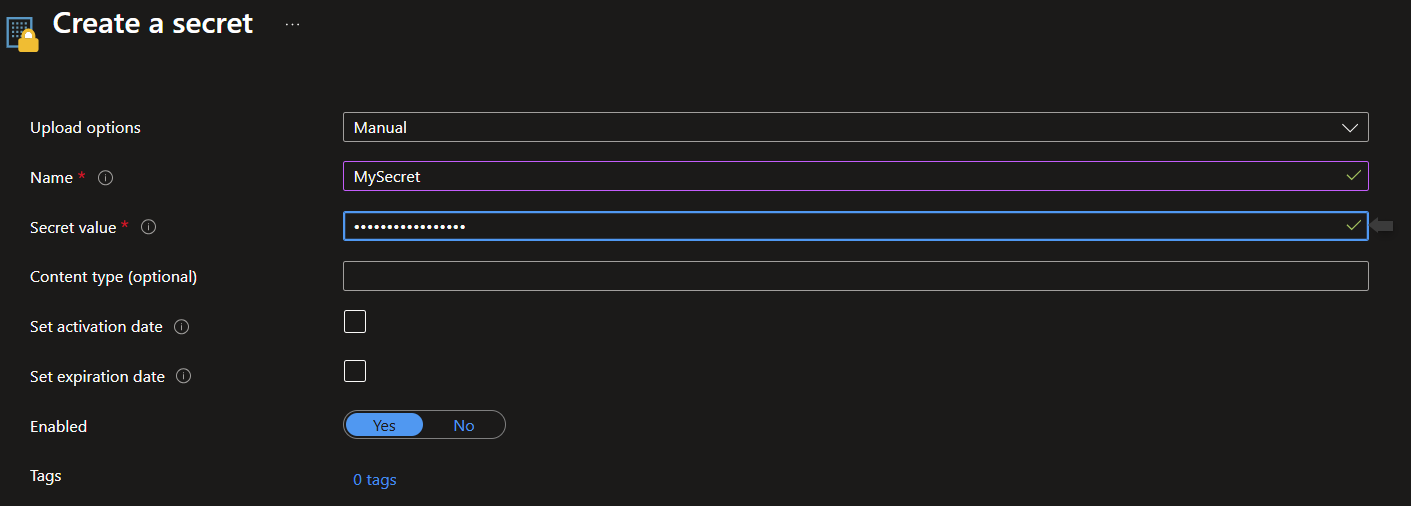
3. Set Upload options to “Manual,” give the secret a name (we'll use ‘MySecret’), and paste your real value into the Secret value field.
4. Leave the content type, activation date, and expiration date at their defaults unless you have a specific need for them and click Create.
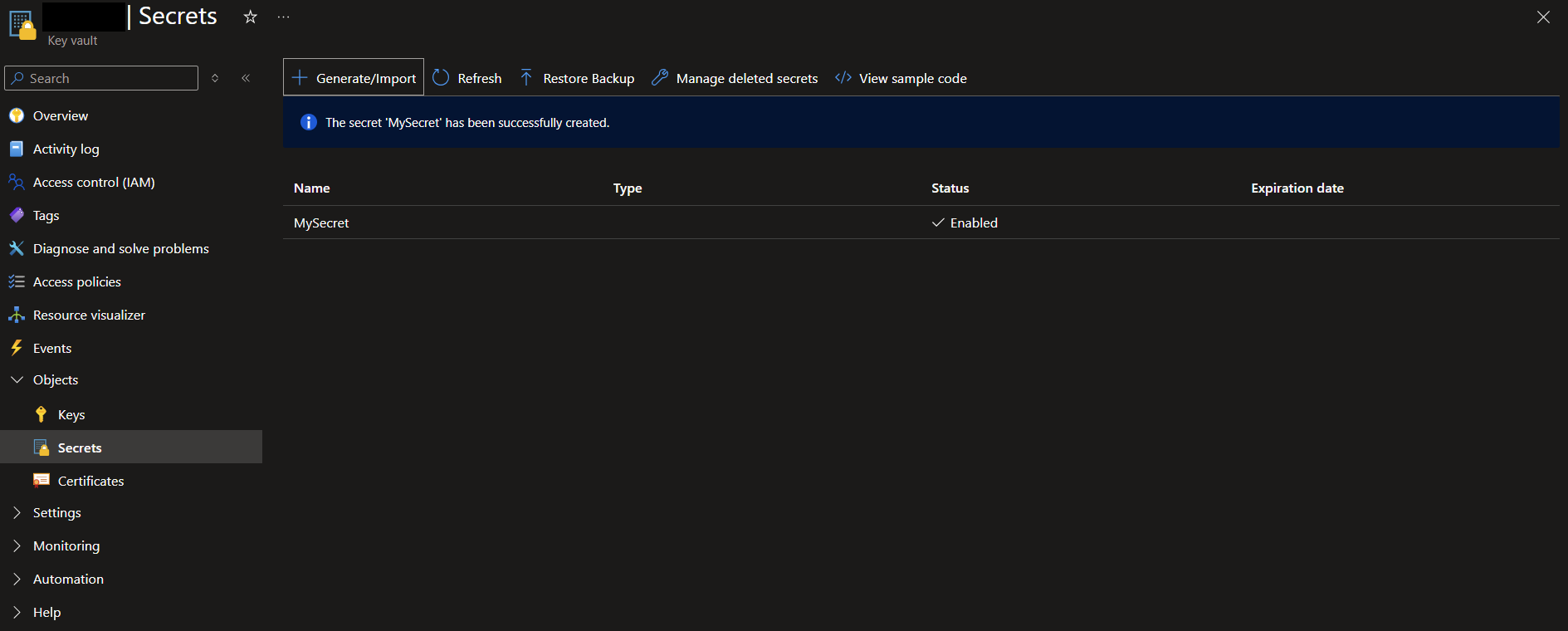
5. Once the secret is created, you'll see it listed with status “Enabled.” Click into it and copy down the Secret name ('MySecret') — you'll need it in a moment.
Step 2: Grant Dataverse access to the Key Vault
This is the step that trips people up the most. Dataverse is a first-party Microsoft service principal in your tenant, and it needs explicit permission to read secrets out of your vault. We'll use Azure RBAC (the modern approach) rather than the legacy access-policy model.
1. From your Key Vault, select Access control (IAM) in the left navigation.
2. Click + Add → Add role assignment.
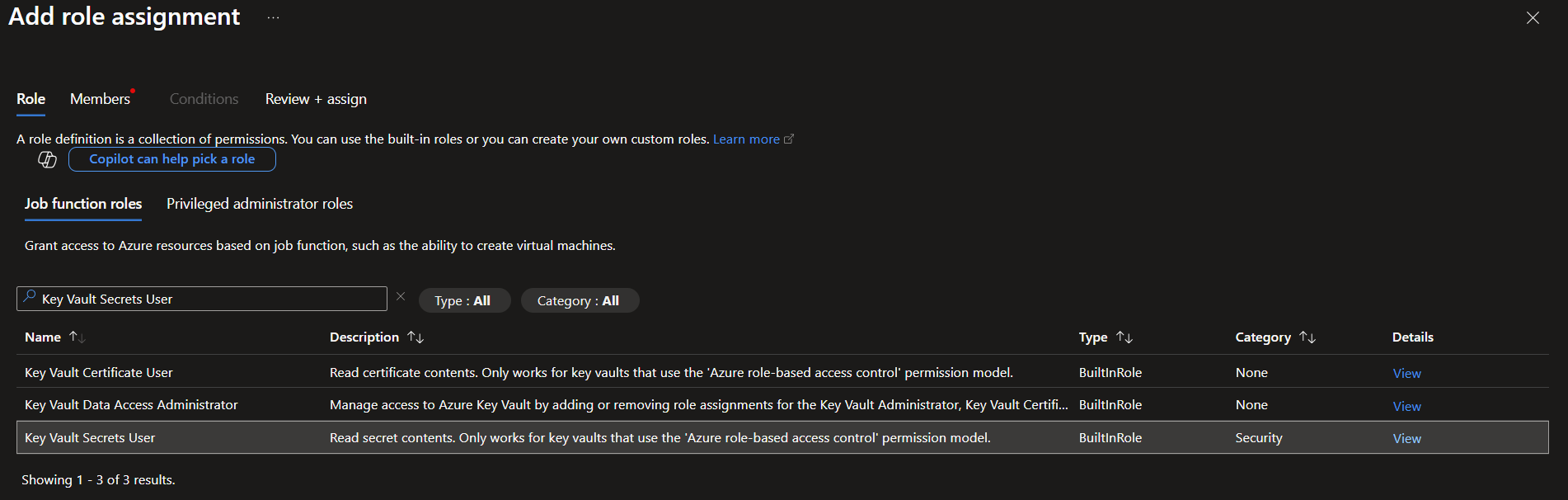
3. On the Role tab, search for and select “Key Vault Secrets User,” then click Next.
4. On the Members tab, set Assign access to “User, group, or service principal,” click +Select members, and search for “Dataverse.” The Microsoft-published app principal will appear at the top of the results, pick the Application type whose name is exactly “Dataverse” (there will be several similarly named "Dataverse" apps; you want the plain one). Click Select.
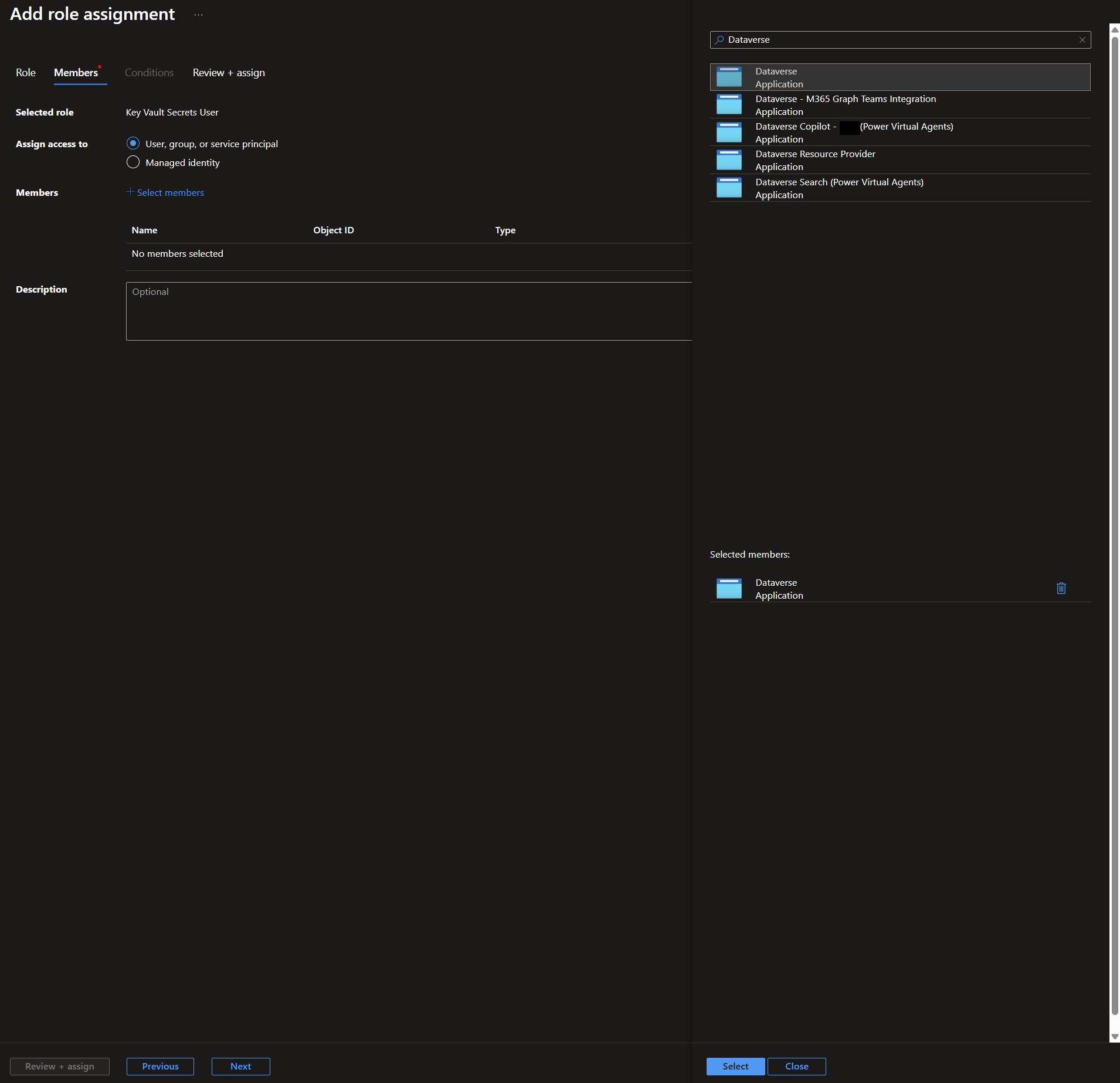
5. Confirm the Dataverse principal is now listed in the Members table.
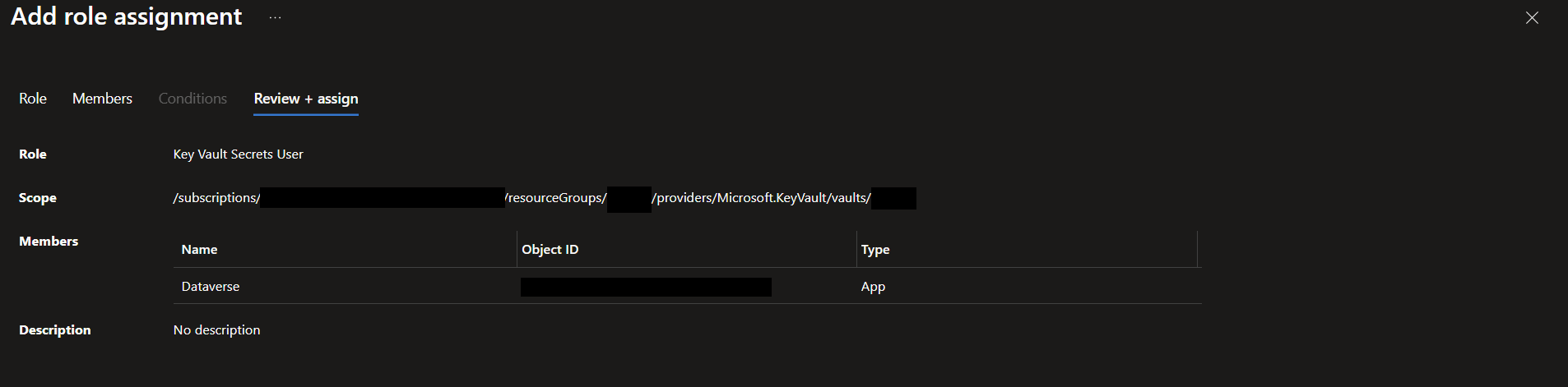
6. Click Review + assign and double-check that the Role is “Key Vault Secrets User,” the Scope points at the correct vault, and the Members list shows “Dataverse” with “App.”
7. Click Assign to finalize.
8. Confirm that your own user account has both Key Vault Reader (management plane — lets the maker portal see that the vault exists) and Key Vault Secrets User (data plane — lets it list and resolve secrets) on the vault. The Secrets Officer role you used in Step 1 grants Secrets User by inheritance, but Reader is a separate role you may need to add explicitly. Without both, the maker portal in Step 3 will fail with a generic "no secrets found" or 403, and the error won't tell you which role is missing.
Step 3: Create the Secret-Backed environment variable
Now jump over to the Power Platform side.
1. Open `make.powerapps.com`, switch into the correct environment using the top-right selector, and open Solutions.
2. Open the unmanaged solution that will own this environment variable (or create one if you don't have a suitable solution yet).
3. Click + New → More → Environment variable.
4. Fill in the basics:
- Display name: `My Secret'
- Name (schema): auto-fills as something like `cr123_mysecret` — note this value, you'll reference it in the flow
- Data type: Secret
- Secret store: Azure Key Vault
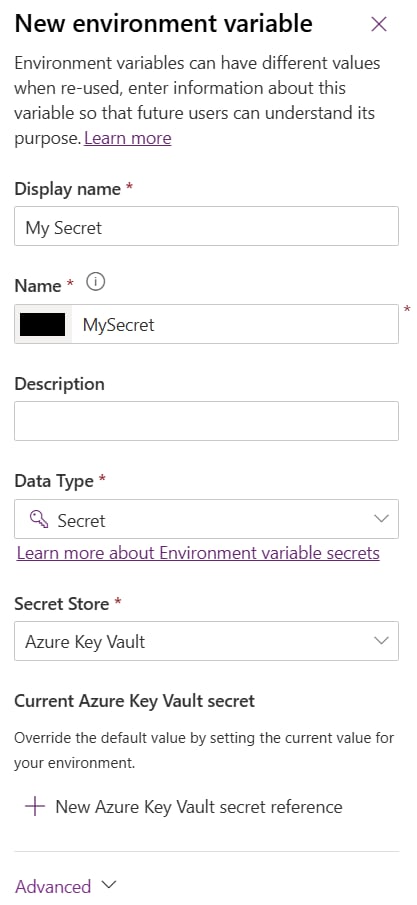
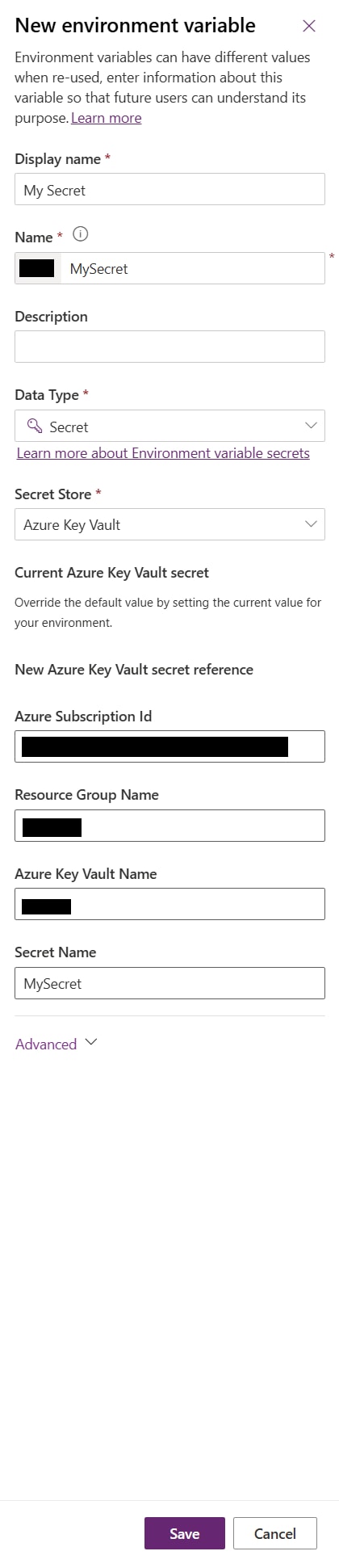
5. Under Current Azure Key Vault secret, click “New Azure Key Vault secret reference.” This expands the section to reveal the fields that point the variable at the actual secret. All four are plain text fields — the maker portal does not query Azure for dropdowns, so have these values ready before you start:
- Azure Subscription Id: paste the GUID (you can find it in the Azure portal under Subscriptions)
- Resource Group Name: the resource group containing your Key Vault
- Azure Key Vault Name: your vault's name
- Secret Name: `MySecret'
6. Click Save.
- If Save fails with “Could not verify the user permission… Make sure that Microsoft.PowerPlatform provider is registered in the Azure subscription": the resource provider that brokers Power Platform's access to Azure resources isn't registered on your subscription yet. In the Azure portal, open the subscription → Settings → Resource providers → filter for `Microsoft.PowerPlatform` → select it and click Register. Wait until the status flips to “Registered,” then come back and click Save again. This is a one-time, per-subscription action.
- If Save fails differently, usually with a "no secrets found" or generic 403: double-check the Azure RBAC roles from Step 2, both for the Dataverse principal and for your own user.
Step 4: Validate it with a Power Automate Flow
The environment variable now exists in Dataverse, but it doesn't actually fetch a value until something uses it. The cleanest way to confirm everything is wired correctly is to build a tiny instant cloud flow that retrieves the secret and outputs it.
1. From the same solution, click + New → Automation → Cloud flow → Instant.
2. Name the flow something like `Test AKV Env Var` and choose Manually trigger a flow.
3. Add a new step and pick Microsoft Dataverse → Perform an unbound action.
4. Set Action Name to `RetrieveEnvironmentVariableSecretValue`.
5. For the EnvironmentVariableName parameter, paste your variable's schema name — for example, `cr123_mysecret`.
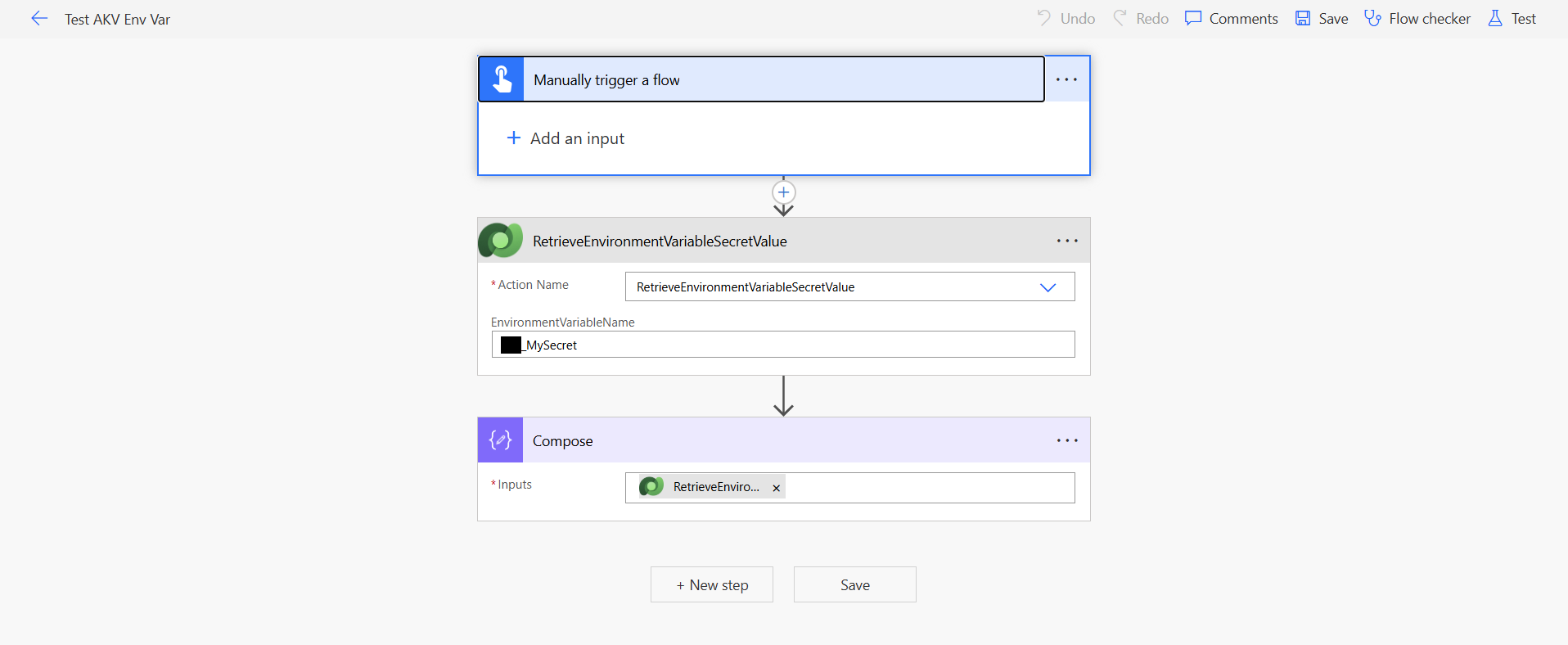
6. Add a Compose action and set its input to:
```
outputs('Perform_an_unbound_action')?['EnvironmentVariableValue']
```
7. Save the flow, click Test → Manually → Test → Run flow, then open the most recent run and expand the Compose action. If everything is wired correctly, the Compose output will show the value you stored in Key Vault back in Step 1.
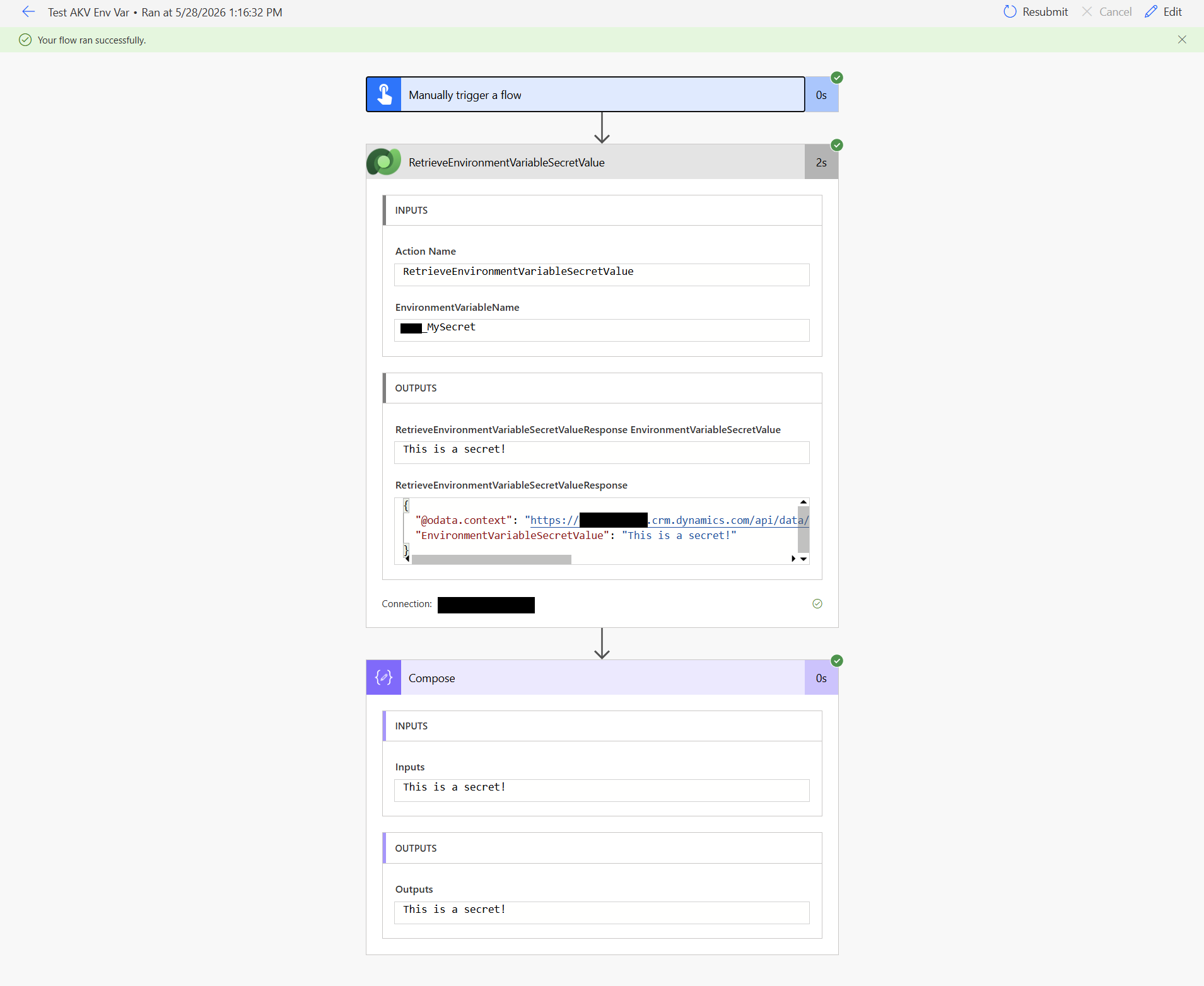
A note on secure outputs: If you run the flow checker on this validation flow, you'll see a warning along the lines of “Turn on secure outputs in the settings for 'RetrieveEnvironmentVariableSecretValue' to avoid logging secret values.” That warning is exactly right, and for a one-time validation flow you can safely ignore it — the entire point is to see the resolved value with your own eyes once, then delete the flow.
For any production flow that retrieves the secret, open the action's settings by going to menu → Settings and toggle Secure Outputs on. Power Automate will mark that action's outputs as sensitive and propagate the flag to any downstream action that consumes the value, so the Compose action below also stops logging its inputs and outputs, automatically.
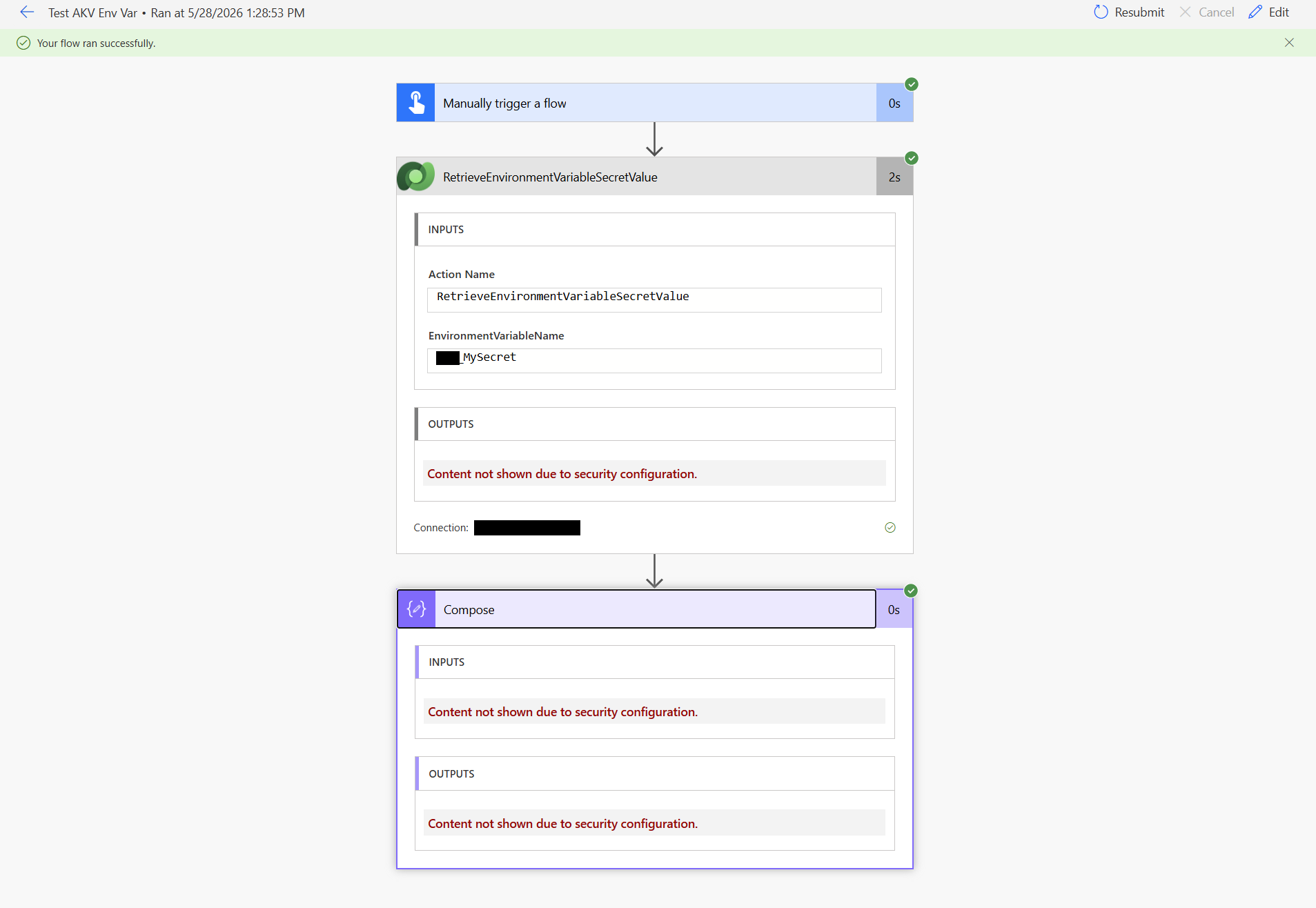
The flow still runs successfully end-to-end; the secret is simply no longer recorded in the run history. That's what you want for every production use of this pattern.
Delete the validation flow once you've confirmed it works. A flow named "Test AKV Env Var" sitting in your environment that retrieves a secret and writes it to a Compose action is exactly the kind of thing you don't want lying around. If you ever need to re-validate after a secret rotation, you can rebuild it in two minutes.
When to use this pattern
A Key Vault–backed environment variable is only as secret as the least protected place the resolved value travels to. The pattern is the right tool when the secret stays server-side, and the wrong tool the moment the value is asked to cross into a browser, a log file, or a flow run history that isn't marked Secure Outputs.
Reach for it when…
- Server-side plugins and custom workflow activities retrieve the value via `IOrganizationService.Retrieve` against the `environmentvariablevalue` table — the value never leaves the Dataverse sandbox.
- Power Automate cloud flows use the secret to call an external API, with Secure Outputs enabled on the unbound action and any downstream action that touches the value.
- Custom APIs and custom connectors use the secret server-side to authenticate to a downstream system and return only the result of that call to whoever invoked them.
- Azure Functions or other external compute authenticate to Dataverse and retrieve the value over the Web API server-to-server — not from a user's browser session.
The common thread: the resolved value lives and dies inside a trusted compute boundary, and only the artifact of using it (an API response, a record update, a signed URL) leaves that boundary.
Don't reach for it when…
- JavaScript web resources or form scripts want the value. This is the headline anti-pattern. Calling `RetrieveEnvironmentVariableSecretValue` over the Web API from a web resource resolves the secret in the user's browser — it shows up in the network tab, in any `console.log`, in any browser extension that inspects XHR, and in memory dumps. Solution exports won't contain it, but every user who loads that form effectively has a copy.
- PCF (PowerApps Component Framework) controls want the value. Same root problem — PCF code runs in the browser. Even a "hidden" control still ships the resolved value to the client.
- Canvas apps retrieve the value directly through the Dataverse connector. The Canvas runtime is a browser; the value is exposed the same way.
- Any flow action downstream of the retrieval is missing Secure Outputs. One non-Secure-Outputs action that consumes the secret writes it into the run history, visible to anyone with access to the flow's runs.
- Plugin trace logging includes the resolved value, even partially. The Plugin Trace Log table has a much broader audience than the plugin itself.
The right pattern for client-side scenarios
If a form script or PCF control genuinely needs to do something that requires the secret (call an external API, sign a request, fetch a token, etc.) build a Custom API or a Power Automate flow that runs server-side, uses the secret there, and returns only what the client actually needs. That might be the API response, a short-lived token bound to the calling user, a signed URL, or just a yes/no result. The client never sees the secret; it only sees the artifact of using it.
A useful mental model: if the resolved value would ever land in a browser, a log file, or a flow run history that isn't marked Secure Outputs, this pattern is the wrong tool — Dataverse has no way to un-leak it after the fact.
Wrapping up
That's the whole pattern. From here, rotating a secret is a single action in Azure — no solution re-imports, no flow edits, no plugin redeploys, and no awkward emails to the team telling them to update their connection references. The same environment variable can be referenced from plugins (via `IOrganizationService.Retrieve` against the `environmentvariablevalue` table), from custom connectors, and from any other flow in the same environment.
If you're standing up a new environment, this is the kind of foundational pattern worth setting up before the first hardcoded secret sneaks into production. One vault, one variable, one place to rotate — exactly how secrets management was supposed to work in the first place.