Copilot Chronicles: Add Topics with Plugin Actions to Copilot in D365 Sales
August 15, 2024
By Pete Majer
Microsoft Copilot is the hot topic.
But not all Copilots are created equal. When you talk about Copilot, you need to know what makes them different.
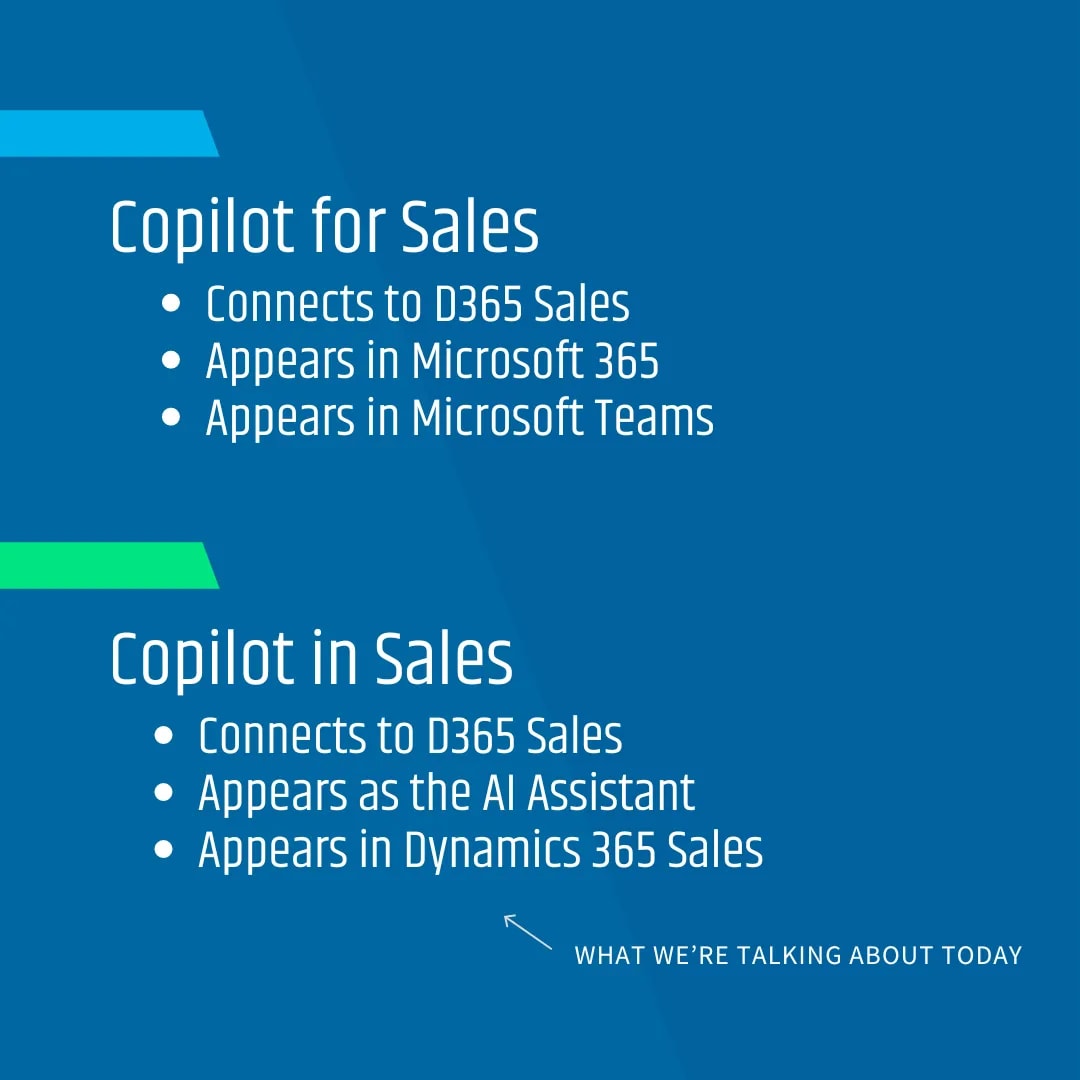
It can get a little confusing when you hear “Copilot for Sales” and “Copilot in Sales”. Both connect to D365 Sales, but the first appears in Microsoft 365 and Teams apps, whereas the second Copilot appears as the AI assistant in Dynamics 365 Sales.
There are also other Copilots such as Copilot in D365 Customer Service and Copilot for Microsoft 365.
The key takeaway here: Microsoft is heavily investing in Copilot and is committed to bringing its features to multiple products.
This post and future posts in this series will focus on Copilot in Sales – the one that appears as the AI assistant in Dynamics 365 Sales.
Yes, you can update an out-of-the-box Microsoft Copilot!
Even though this is an out-of-the-box Copilot provided by Microsoft, and embedded in Dynamics 365 Sales, there is the way to extend the bot and custom topics interacting with custom tables.
This makes Copilot in D365 Sales more powerful, as out-of-the-box topics mostly deal with Accounts, Opportunities, Leads, etc.
Where to begin?
The bot you want to update is the Sales Copilot Power Virtual Agents Bot. You can open this bot under the Custom Copilots list once you login to Copilot Studio.
However, if you follow an ALM (and you should) making changes in Dev and deploying them to Test/Prod, the Chatbot components are solution aware.
Navigate to Power Apps, create a solution, and add the Chatbot.
- Note: When I created a new Topic (outlined below), it was automatically added to my solution as a Chatbot Subcomponent. However, I also saved a copy of an existing topic and that was not added to my solution. I didn’t see a way to add a Chatbot Subcomponent to my solution manually.
- You may need to go to the Chatbot in the solution, click on Advanced -> Add Required Objects. Doing this added the topic I copied as a Chatbot Subcomponent.
Create a Custom Plugin Action
Now comes the fun part.
This is where you get to be creative and build the custom topic and logic you want to include in your Copilot in D365 Sales.
Before we create our topic, we’ll want to create a Custom Plugin Action that will be called from our topic. This action will perform most of the logic we want Copilot to perform for us.
At Root16 we eat our own dog food (or drink our own champagne) and use D365 for our own sales processes and operations.
We use it track our Accounts and Opportunities, as well as managing projects as Opportunities are won. Therefore, we felt it would be perfect to build our own topic displaying project metrics and details.
To start, click on the Sales Copilot Power Virtual Agents Bot in your solution. This will launch Copilot Studio with that specific copilot selected.
Next, click on Actions and click on Add an Action. If you already have a flow, connector, or other skills defined you can select from the list. Otherwise, scroll to the bottom and select Create a new flow. At the top left of the flow that opens, select “Run a flow from Copilot” and rename it to something more appropriate.
In our case, we renamed it to Get Project Details.
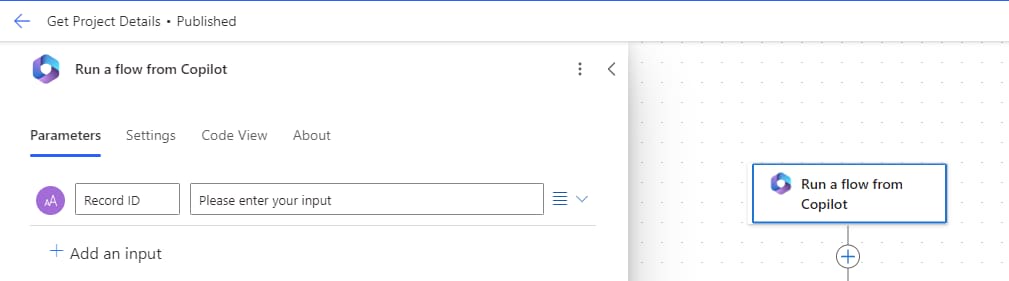
Click on the trigger step “Run a flow from Copilot” and click on Add an input. Select Text and create a new input called Record ID.
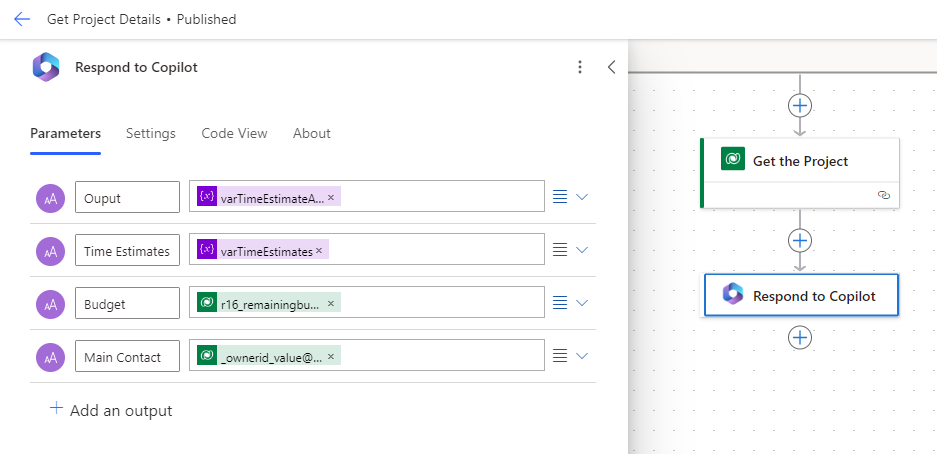
Click on the “Respond to Copilot” last step and similarly click on Add an output. As you can see below, we have a handful of outputs that we’re returning that we’ll want to display via our Topic. Your scenario would have different outputs.
You can fill out the rest of the flow with the logic to gather the metrics you want to return. As far as the flow itself, we won’t go into details of building out the flow as this post isn’t intended to dive deeper into building flows.
But you should know that the flow can do anything you want to gather data and return it in the Output of the Respond to Copilot last step of the flow. The flow we created for our example retrieved some key elements of our Project record in D365.
Return to Copilot Studio and click the button to refresh the list of actions to select from.
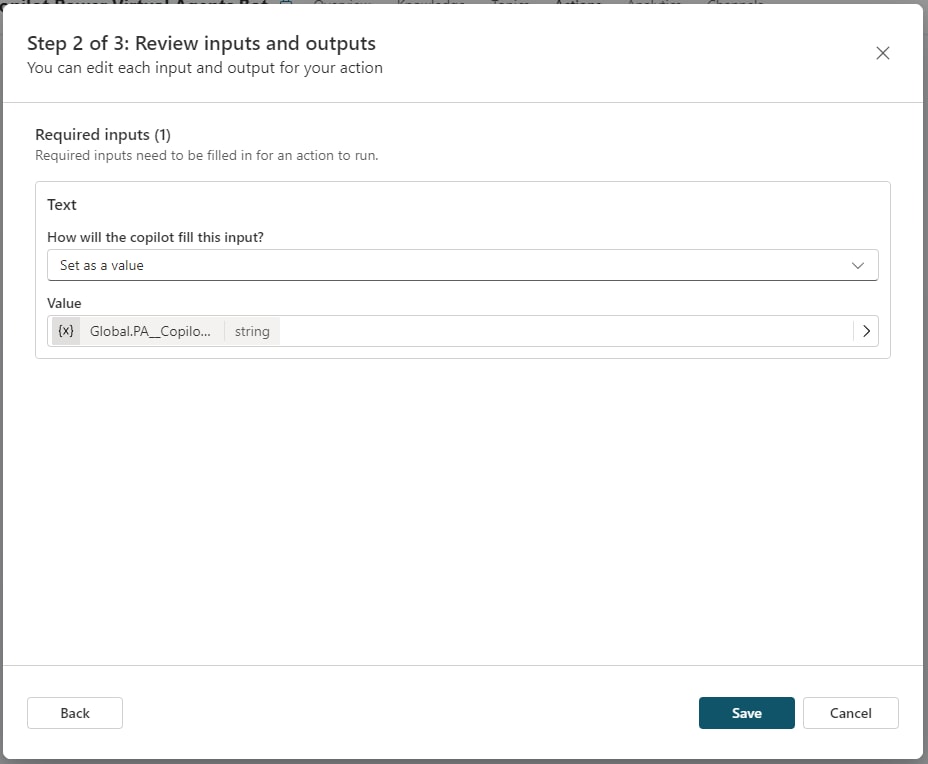
Select the Flow you just created and click on Next. You should now see the Inputs/Outputs page. Click on Edit Inputs and change “How will the copilot fill this input” to Set as value and click on Confirm.
One thing we found out that was pretty cool is that there’s a Global variable PA__Copilot_Model_PageContext.pageContext.id.guid that will pass the record GUID for the record you’re on in D365 into your action / flow. Search for and select this variable.
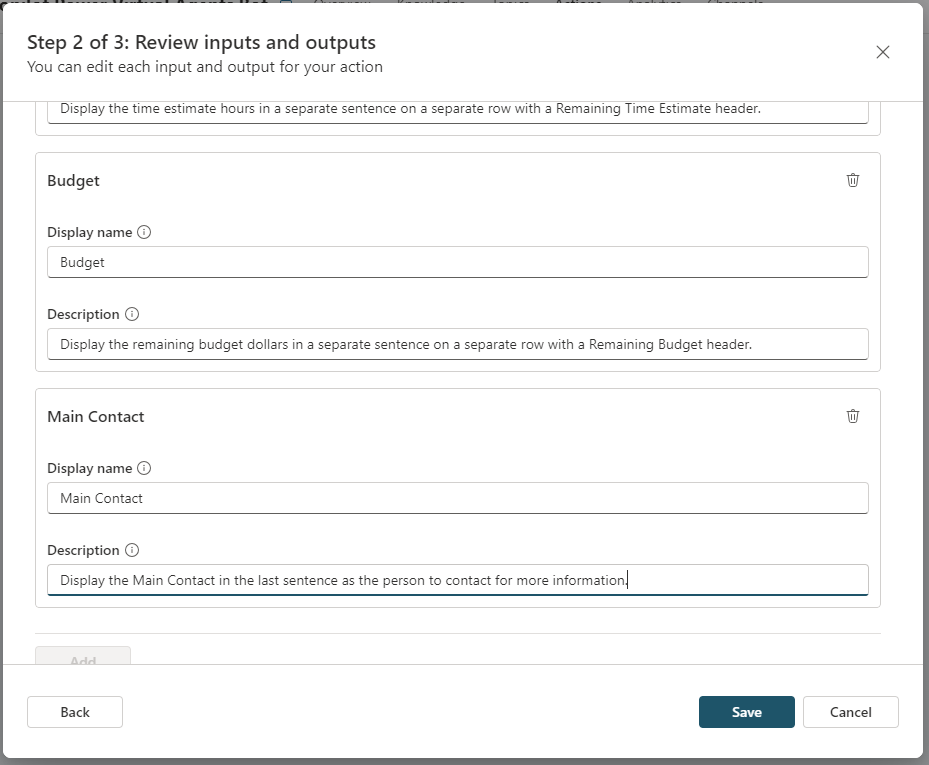
Click on Outputs and Edit Outputs. Provide a display name (I used the same name as the Variable Name) and Description. The description is important which can be used as instructions for the action such as “display the information in a list format with a Remaining Time Estimate header”.
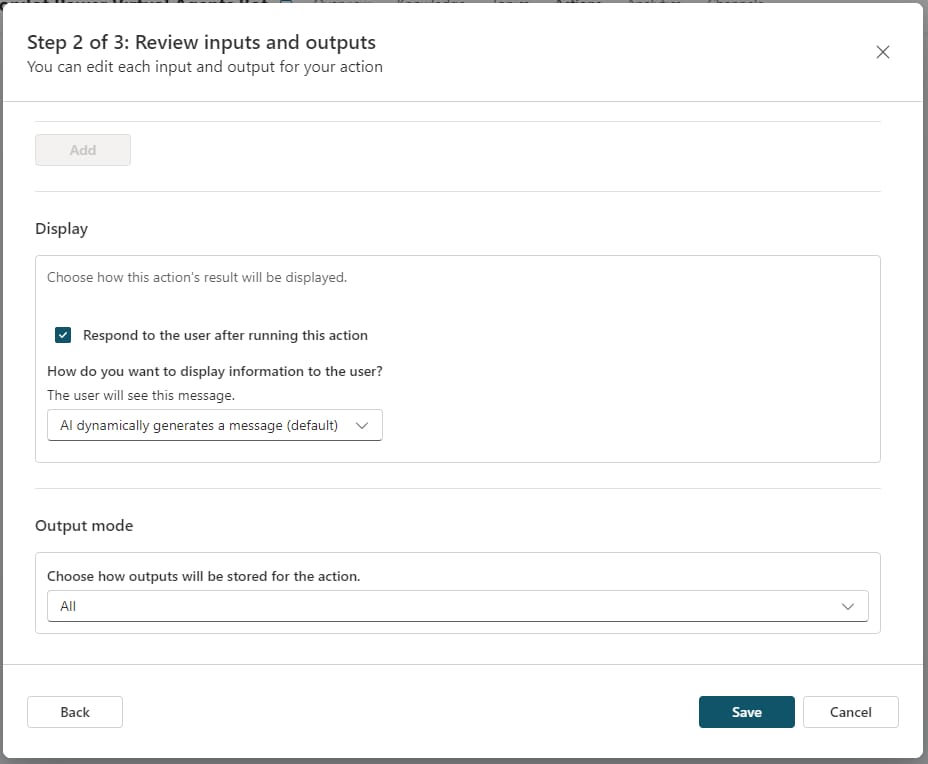
The “Respond to the user after running this action” checkbox at the bottom is important. You’ll want that checked with the “AI dynamically generates a message (default)” option selected.
This will ensure your plugin action will automatically respond in an AI generated format after it runs in your topic, without you having to format the output returned from the flow.
- Note: the inputs and outputs can be modified on the Action after the initial save.
Click on Save and Next, and you can change the display name, and description of your custom action if you’d like.
Finally, click on Finish and you now have a custom action that can be called from a topic, and passing in the record ID from D365 Sales.
Let's create a topic
Since we now have our custom action, we can move onto building out our topic that will call that action.
From within Sales Copilot Power Virtual Agents Bot, click on Topics and click on Add a Topic -> From Blank at the top of the page.
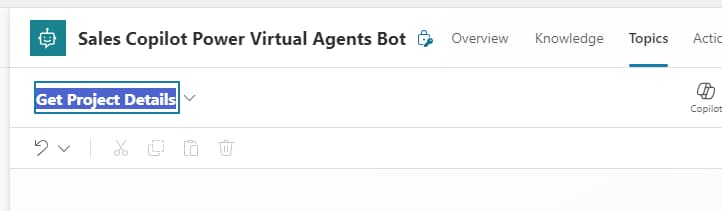
You can rename the topic by clicking in the name in the top left of the page. Since our topic is about gathering project details, we’ll name it “Get Project Details” (very creative we know).
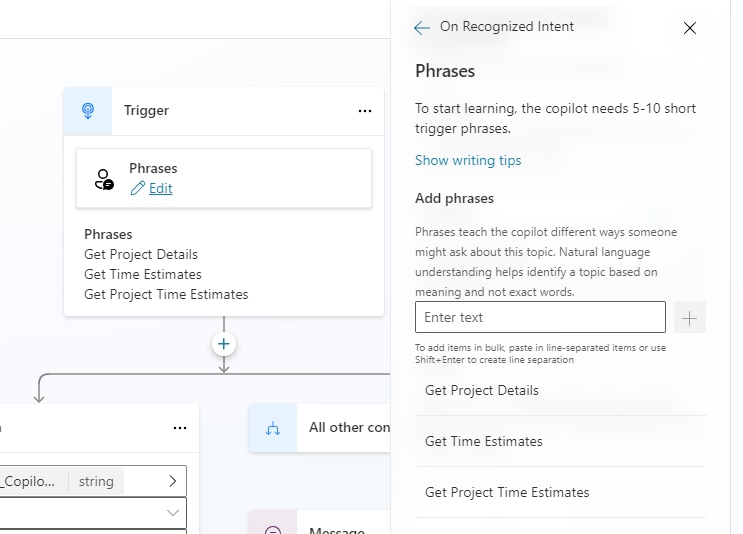
The Trigger step will allow us to add phrases that will kick off this topic. If you click on the Edit link under Phrases, you can type in your own phrases. We added a few below.
Here come some interesting steps that will make your topic a better experience for end users as they’re using Copilot in D365 for Sales.
If you add a condition, you can add a couple of checks to make sure:
- You’re on the right table
- You’re on a form vs. a list
There are a couple of global variables in Copilot you’ll have access to in your topic that pull back that specific information.
The first is Global.PA__Copilot_Model_PageContext.pageContext.entityTypeName, and this will return the table schema name the user is on currently in D365 for Sales.
The second is Global.PA__Copilot_Model_PageContext.pageContext.pageType. As mentioned above, this will return either entitylist or entityrecord to help you know if you’re on a record form or not.
Therefore, we added a condition that will call our custom logic only if we’re on the form for the specific table that we want our logic to run on. Otherwise, we’ll return a user-friendly error message.
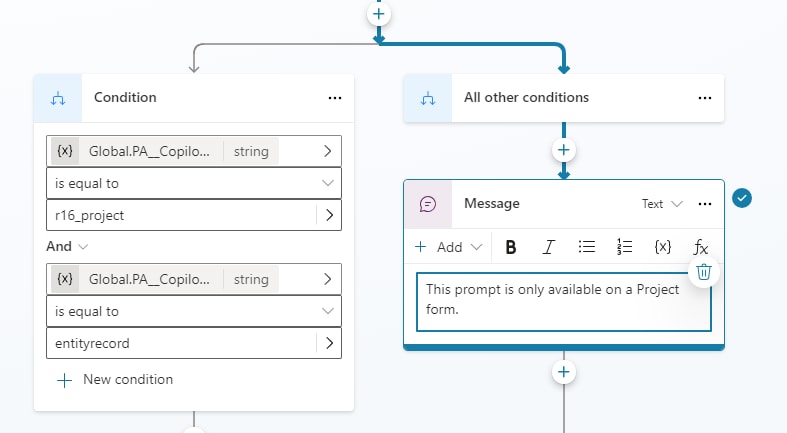
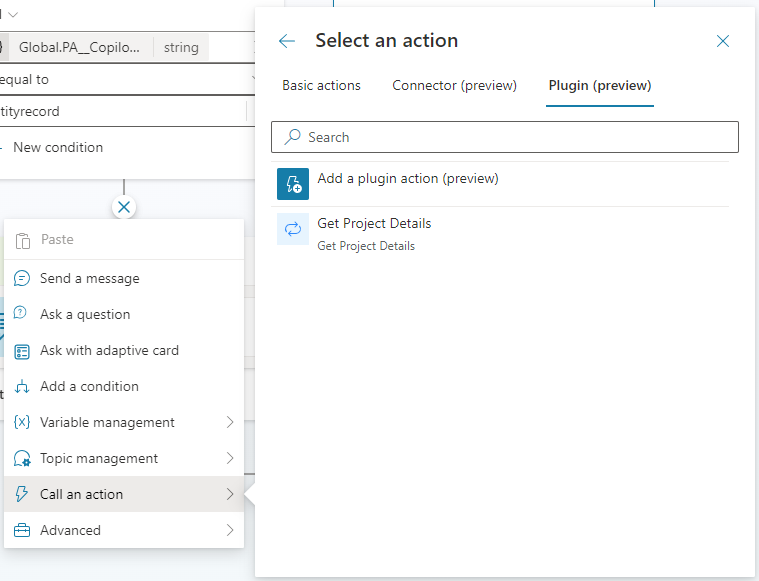
Next, in the left branch where we know we’re on a Project (r16_project) form, we want to add a new step which is to Call an Action -> Plugin (preview) and select the Action we created above.
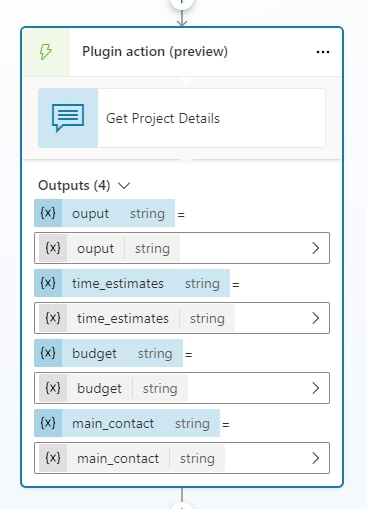
After adding your plugin action, the outputs should automatically populate. After this is complete, you can click on Save and then Publish at the top to make sure all changes to your topic are saved, and the Copilot is published.
Let's test it out
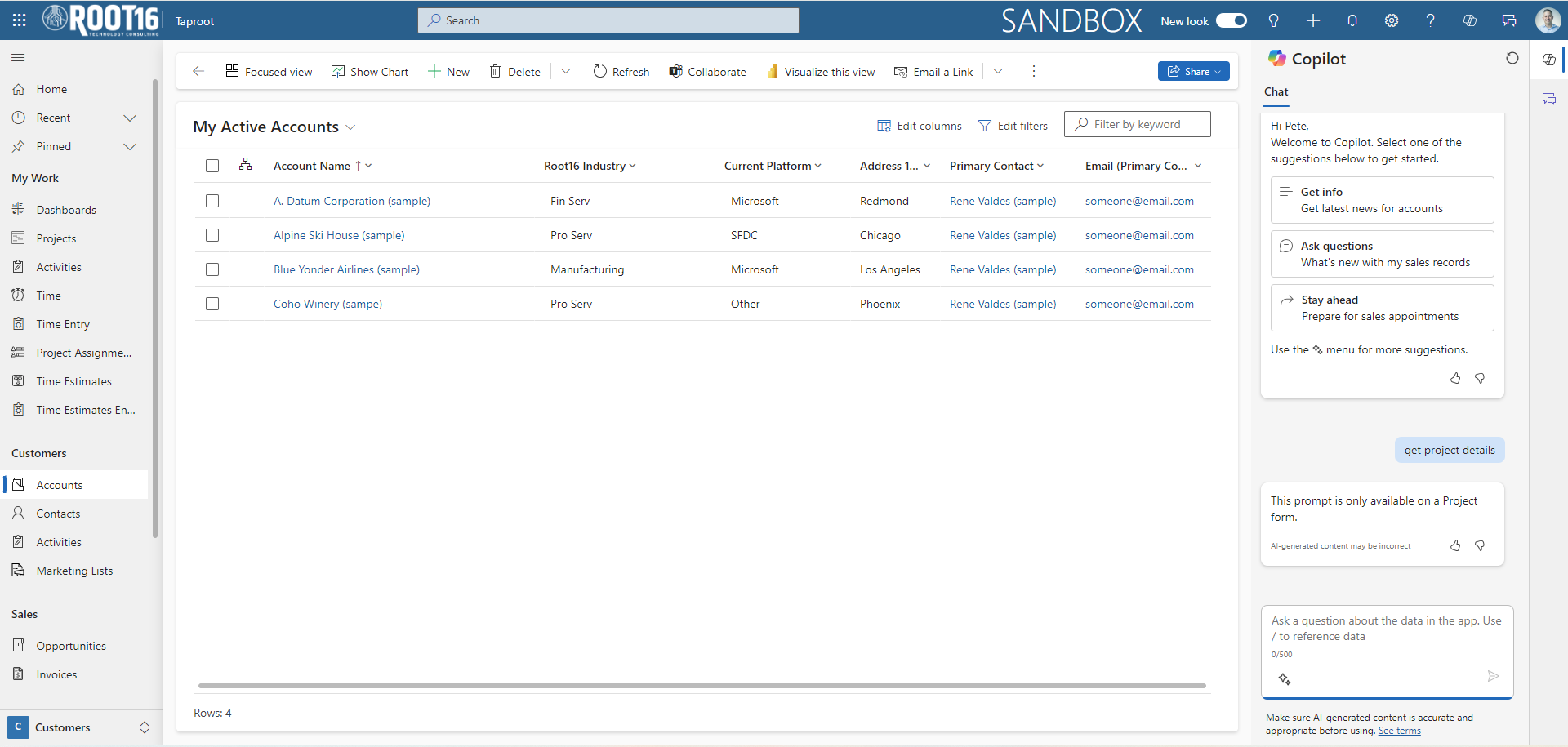
As mentioned, this topic should only work when on a Project form.
We can test this by navigating to other tables and lists to verify. As you can see below, we’re getting the response we expected.
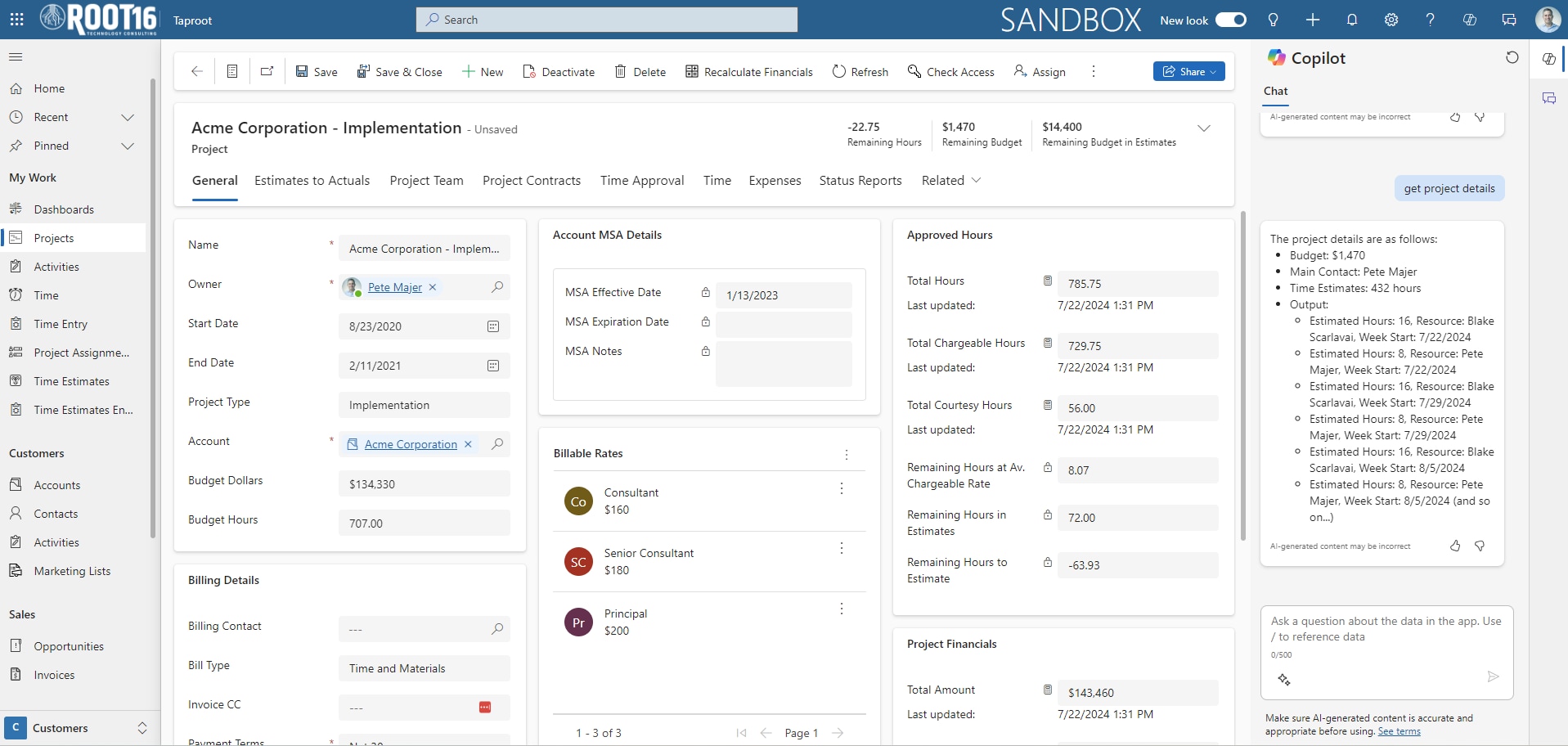
Now let’s navigate to an actual Project record form and see if it works there as expected. As you can see below, our flow was accurately called, and the detail returned including upcoming time estimates for the project.
Endless Possibilities
This post quickly shows you how to create a custom topic in the out-of-the-box Copilot in D365 Sales, with some logic to pull specific data to our use case.
Additional tweaks to the flow, plugin, and topic can refine the data that’s being returned to provide our team members with the best experience but is a starting point to show the possibilities to hook into the native AI Microsoft provides with D365 for Sales.