Copilot Chronicles: Add to the Sparkle Menu in Copilot in D365 Sales
September 26, 2024
By Pete Majer
We previously posted about how to add custom topics with a custom plugin action to the out-of-the-box Copilot in D365 Sales. This post show you how you can go further and update the Sparkle Menu with your own custom groupings and options.
What is the Sparkle Menu?
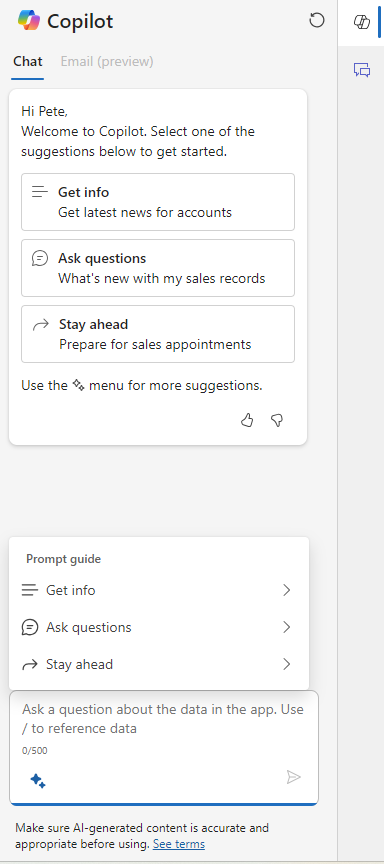
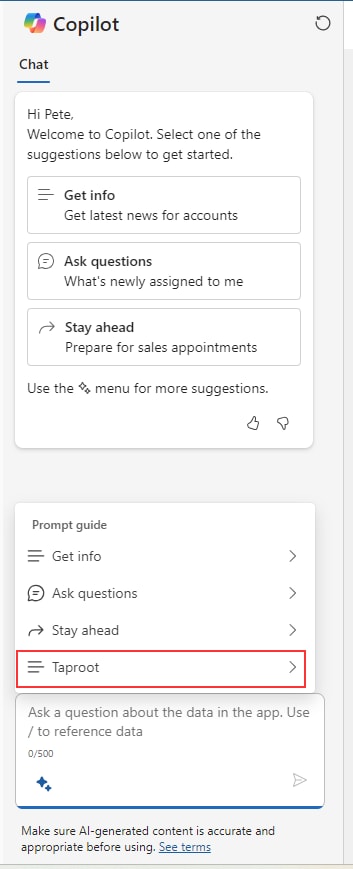
The Sparkle menu is the suggestion menu prompt guide that appears when you click the two-star icon in the bottom corner of the Copilot frame.
By default, you only get:
- Get Info
- Ask Questions
- Stay Ahead
However, adding your options to this menu is possible to help guide your users along their Copilot journey.
Where to start?
As mentioned in the last post, the Sales Copilot Power Virtual Agents Bot is what you want to edit. It’s best practice to add this Chatbot to a Solution along with the Chatbot Subcomponents you’ll need. This would be any custom topics you created, as well as the copy of the SalesSparks topic you’ll create (more to come on that).
For now, open up the Sales Copilot Power Virtual Agents copilot/chatbot.
Copy the SalesSparks Topic
As mentioned above, the SalesSparks topic is key here. If you searched for it and opened it, you’ll see actions at the end where a couple table type variables are being set (SparkGroups and Sparks).
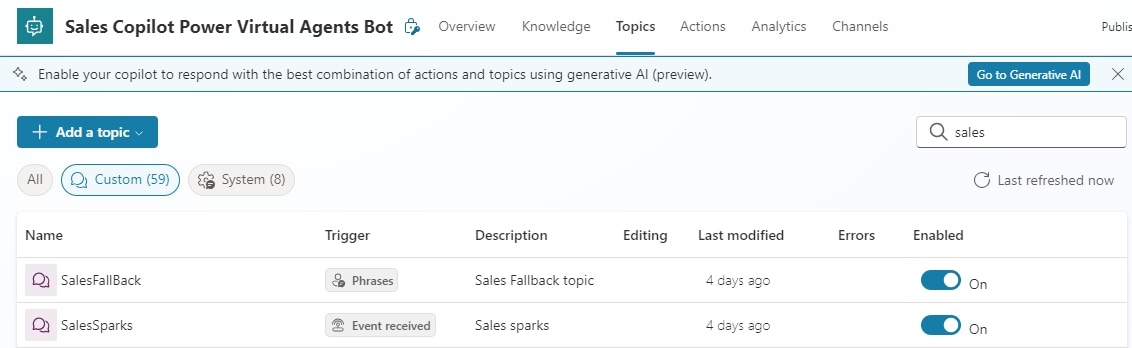
The SparkGroups table variable is being set in a “Set Variable Value” action whereas the Sparks table variable is being set in a “Parse Value” action.
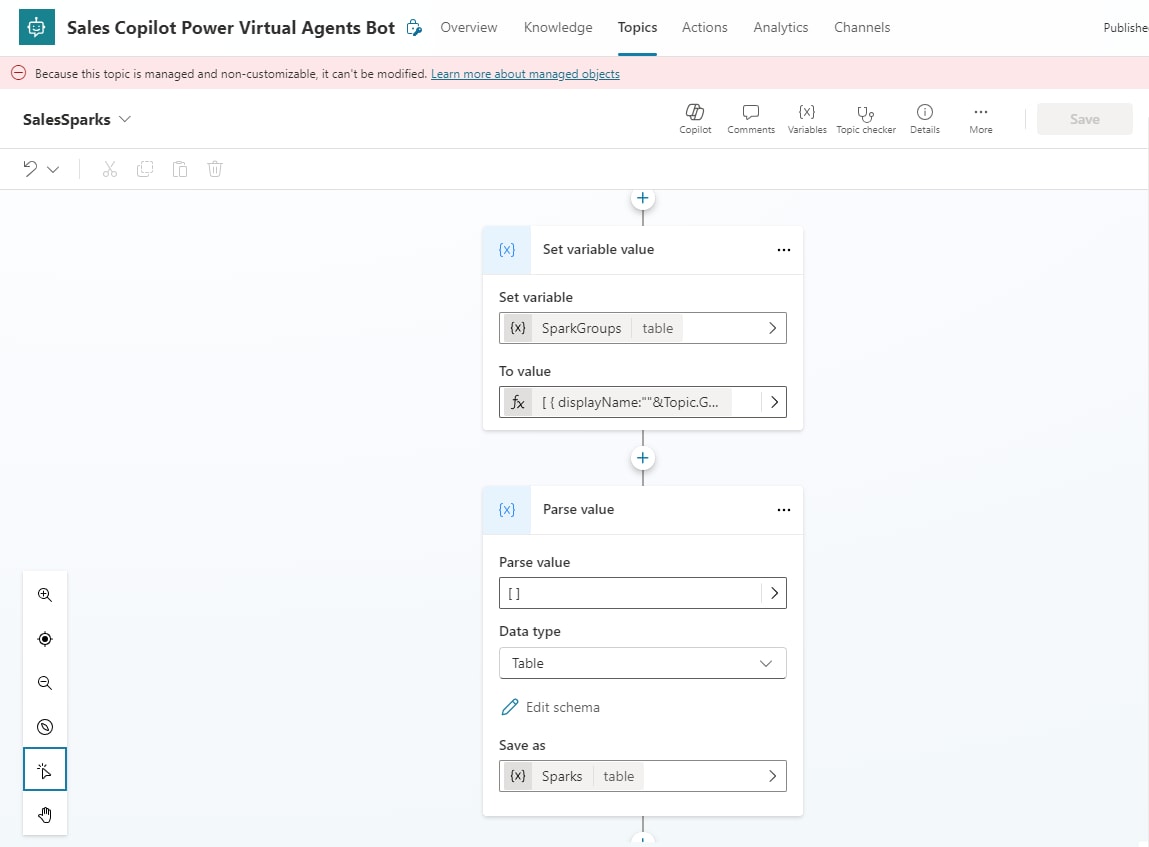
You’ll notice in the top of that last screenshot above the red banner a message that indicates this is a managed topic and cannot be modified. Therefore, you’ll need to navigate back to the list of Topics, click the three dots (…) next to SalesSparks, and select Make a Copy.
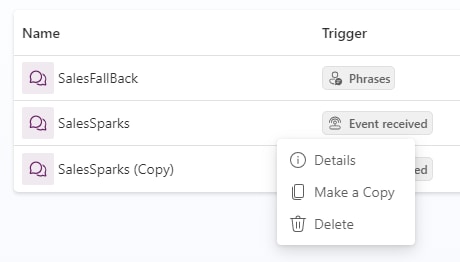
Open the copy to make your modifications. Scroll down to the same step that was setting the SparkGroups variable. Click the right arrow next > to the “To value” > and copy the value in the formula that’s being set. If you paste it, you’ll see it in a format such as below:
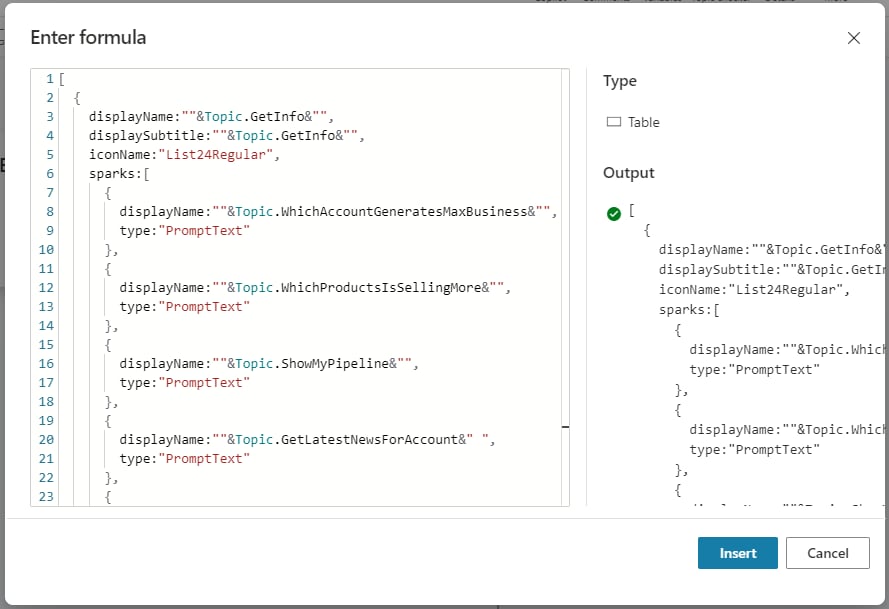
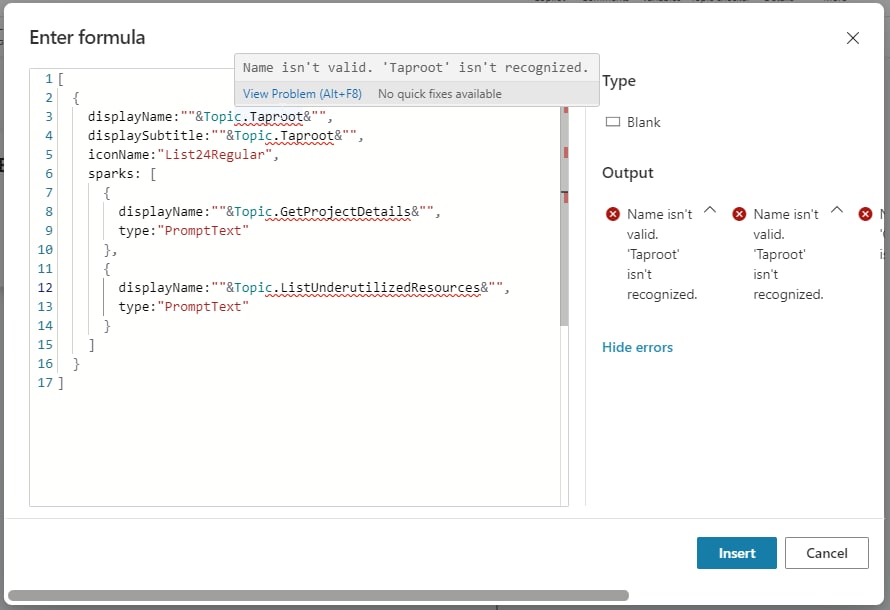
You can see the format of the SparkGroup followed by specific Topic prompts afterwards. Our first attempt is to update this action to be a similar format while leveraging our Topics. However, when doing so we received a lot of errors stating our SparkGroup name and Topic names were not found.
However, we noticed a Parse Value action to populate the Sparks table variable, so next tried adding a new Parse Value step to populate the SparkGroups table variable as well. We just need to get the value to parse in JSON format. Therefore, the text we passed into the Parse Value action was the following:
[
{
"displayName": "Taproot",
"displaySubtitle": "Taproot",
"iconName": "List24Regular",
"sparks": [
{
"displayName": "Get Project Details",
"type": "PromptText"
},
{
"displayName": "List Underutilized Resources",
"type": "PromptText"
}
]
}
]
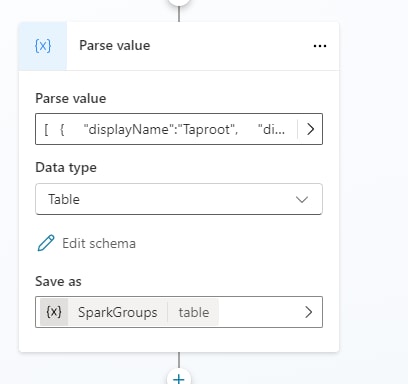
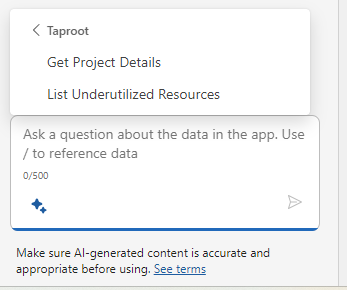
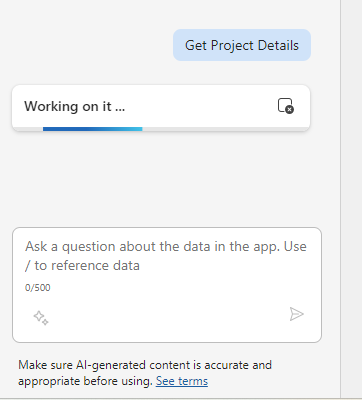
After doing this, we were able to Save our SalesSparks (Copy) topic and Publish the Copilot. Once we did that, we saw our custom grouping and topics listed as suggested prompts via the Sparkle menu.
Wrapping it Up
This is just another example of how you’re able to modify the out-of-the-box Copilot in D365 Sales. Most customers believe that you only get the out-of-the-box solution and are forced to use what Microsoft defines. Walking through this post you can see that customers have quite a bit of flexibility in updating and enhancing the native product.