Adding a Power BI report to Dynamics as a Dashboard
October 15, 2024
By Doug Walker
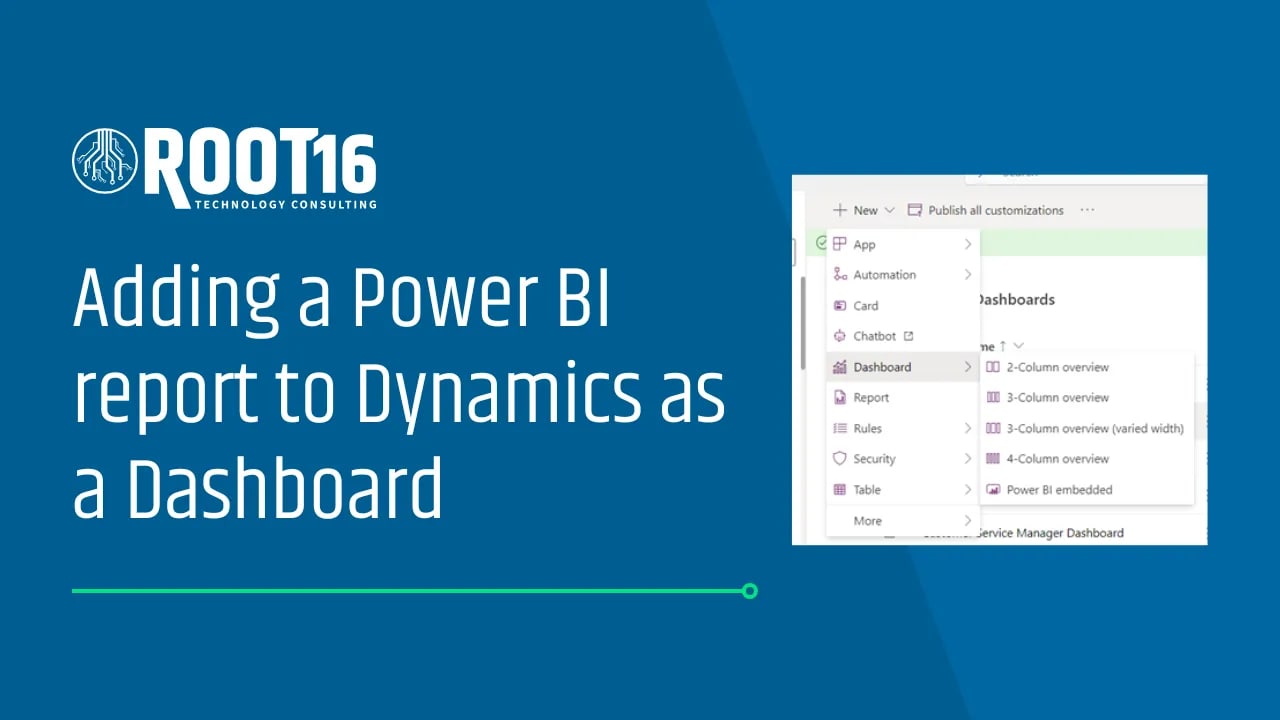
One of the typical questions I get from customers is, “How do I embed a Power BI dashboard into Dynamics?”
This is a great question! Adding a Power BI report to Dynamics brings those real-time insights from Power BI right into your daily workflow in Dynamics.
You won’t need to jump between apps, which saves time, keeps you focused, and increases the likelihood of your team regularly reviewing the data. The visuals in Power BI also make it easy to spot trends, track goals, and understand key data immediately.
There are a couple of things you need to do to add a Power BI report to D365 as a Dashboard:
- The report needs to be added to the solution.
- The report needs to be added to both the Site Map, and the App.
While a lot of times these two steps can be done together, sometimes it will take an extra step.
Let’s walk through an example.
Adding to the Solution
- Open the solution you want to add the dashboard (Power BI report) to.
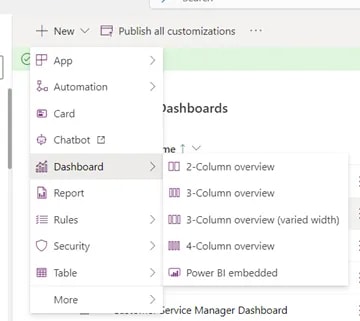
- Select Add -> Dashboard -> Power BI embedded.
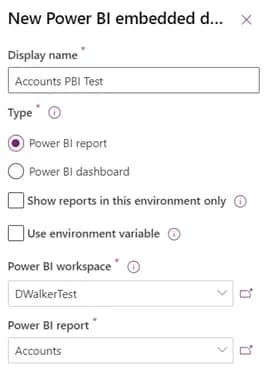
- Enter the details for the New Power BI Embedded report.
- Enter the display name you want to show up in Dynamics for the report.
- Uncheck “Show reports in this environment only” to enable you to look for the report in Power BI.
- Choose if this is a Power BI report or a Power BI Dashboard.
- The report should now show up as an object in your solution.
- Note: Make sure to publish the report!
Adding to the App:
- In the solution you want to add the dashboard (Power BI report) to, choose the App you want this to show up in.
- Open the App to Edit.
- In the App editor, add a new Dashboard Page.
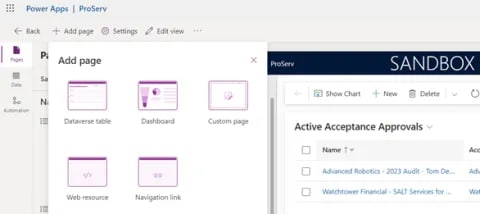
- In the Select a Dashboard Dialog, choose Power BI Dashboards.
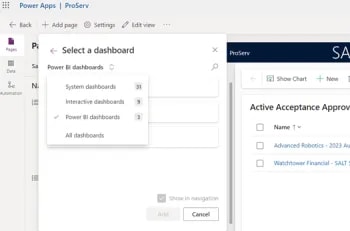
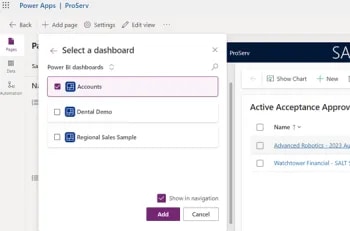
- Select the Power BI Dashboard (Report) you want to include and click add (make sure Show in Navigation is checked).
- Note: If you forget to show it in navigation, you will need to go back and do this later.
- By default, the new page will show up at the bottom of the Navigation pages, be sure to move this to where you want to see it in the navigation.
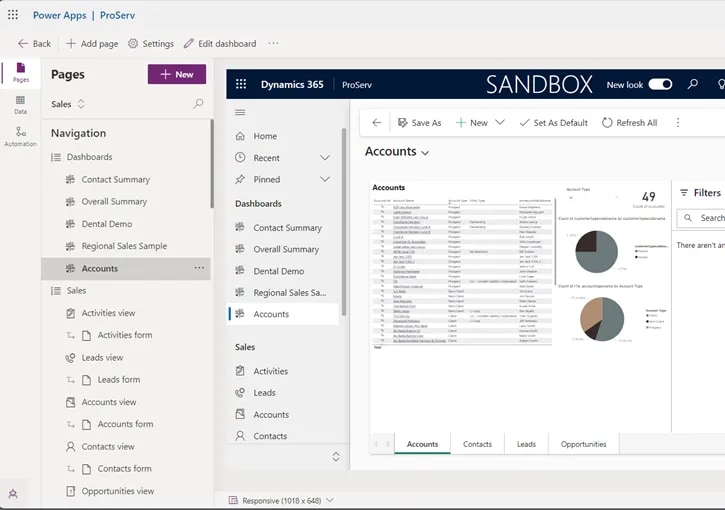
- Publish the changes to the App.
- Note: You will also want to check the classic view for the app.
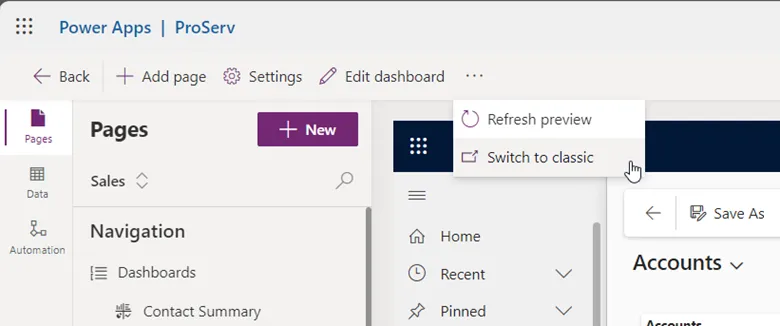
- In the classic Dynamics App Designer, it’s possible all dashboards aren’t enabled, and you will need to add the new dashboard for it to show up.
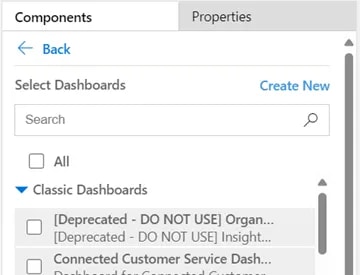
- Click on the Switch to classic link under the ellipsis.
- Once you have opened the Classic App Designer, click on the Dashboards component and navigate to the bottom of the Select Dashboards Components box to select your new dashboard.
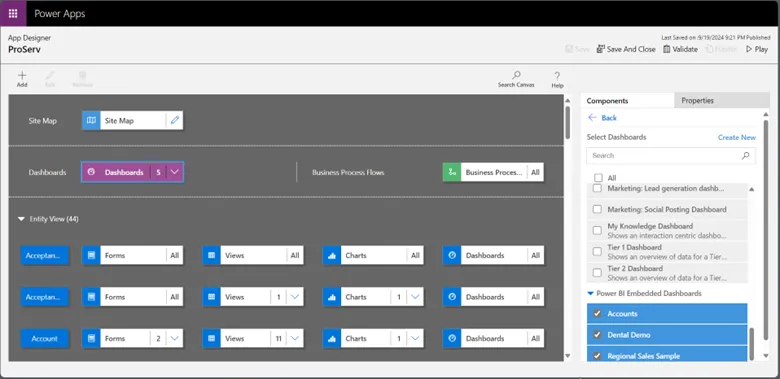
- Save and then publish.
Once you have saved and published all the changes, you should see your new dashboard in your Dynamics application!
There is just one more thing we want to check to make sure all your users can see this report as well: Permissions.
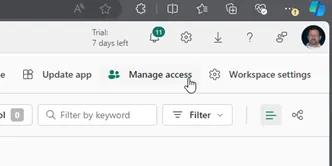
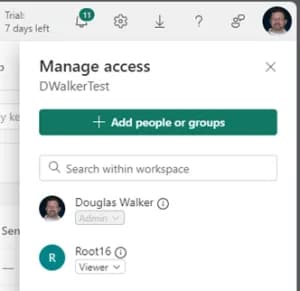
- The users must have permission to the Power BI report in the Power BI service to access the report once published to Dynamics.
Key references for this post: